
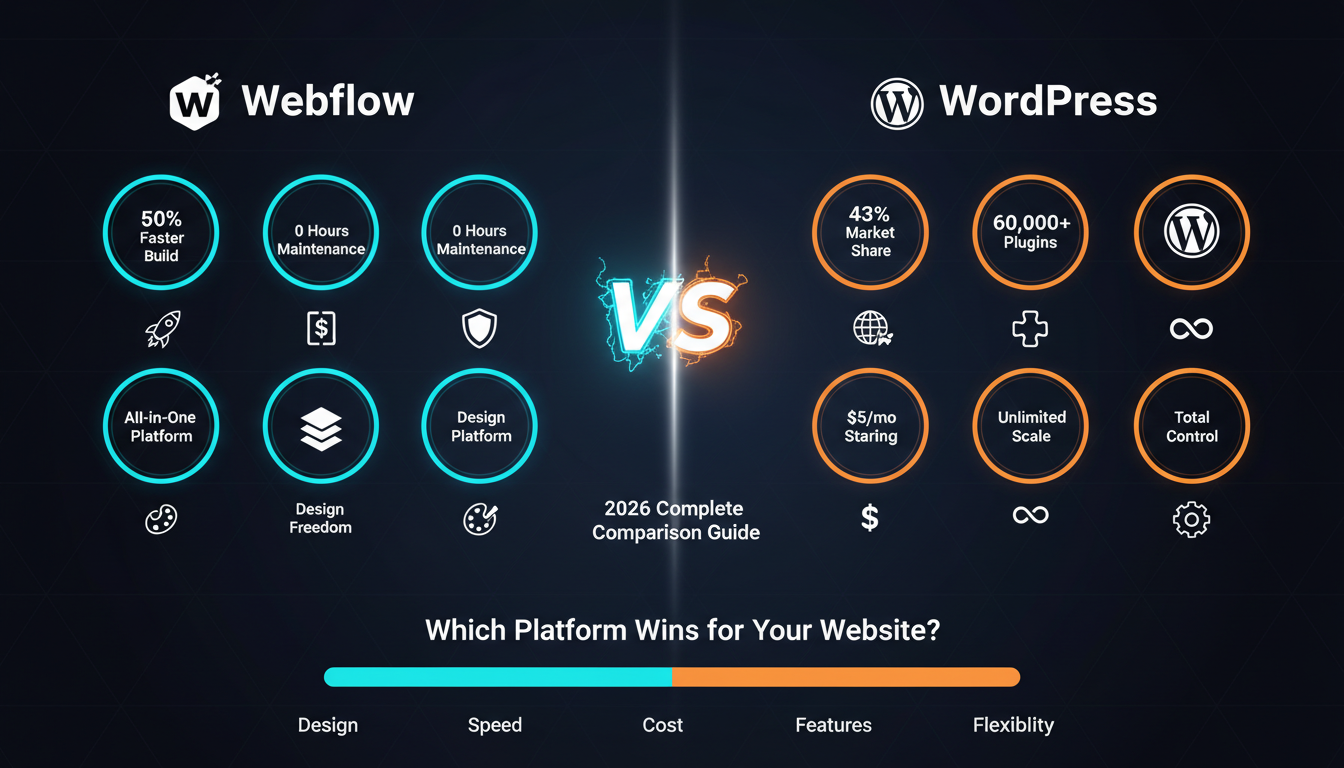
Building a website today is easier than ever. But choosing the right tool can feel like a puzzle. Two popular choices are Webflow and WordPress. Both help you create beautiful websites, but they work very differently.
Think of it this way: WordPress is like building with LEGO blocks, where you can buy any piece you want. Webflow is like getting a complete art studio where everything works together from day one.
In this guide, we’ll compare Webflow vs WordPress so you can pick the best one for your needs. We’ll keep things simple and clear.
WordPress started in 2003 as a simple blogging tool. Today, it powers over 43% of all websites on the internet. Discover how WordPress website design can work for your business needs.
WordPress is free software that you can download and use on any computer. It’s like getting a free toolbox that you can fill with any tools you want.
How WordPress Works:
WordPress gives you a basic website. Then you add “themes” to change how it looks. You add “plugins” to add new features. Want a contact form? Add a plugin. Want to sell products? Add another plugin.
It’s very flexible. You can make almost any type of website with WordPress. But this also means you need to choose and manage many different tools.
Who Uses WordPress?
Webflow started in 2013 with a different idea. The creators wanted to help designers make websites without writing code. They built a visual tool that’s more like designing in Photoshop or Figma.
Learn more about Webflow’s design capabilities and how it empowers creative professionals.
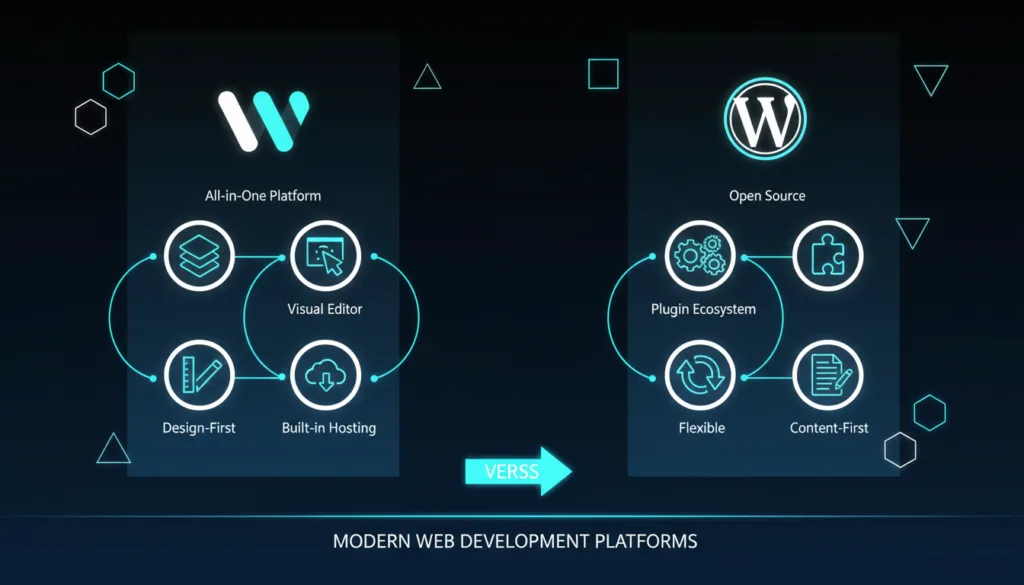
With Webflow, you see exactly what you’re building. You drag and drop elements. You adjust colors and spacing by clicking and moving sliders. The code writes itself in the background.
How Webflow Works:
Webflow is an all-in-one platform. Your website design, hosting, and management all happen in one place. You don’t need to install anything. Just open your web browser and start creating.
Think of it like this: If WordPress is a LEGO set, Webflow is like Play-Doh. You can shape it exactly how you want, and you see your creation come to life as you work.
Who Uses Webflow?
This is where Webflow vs WordPress shows the biggest difference.
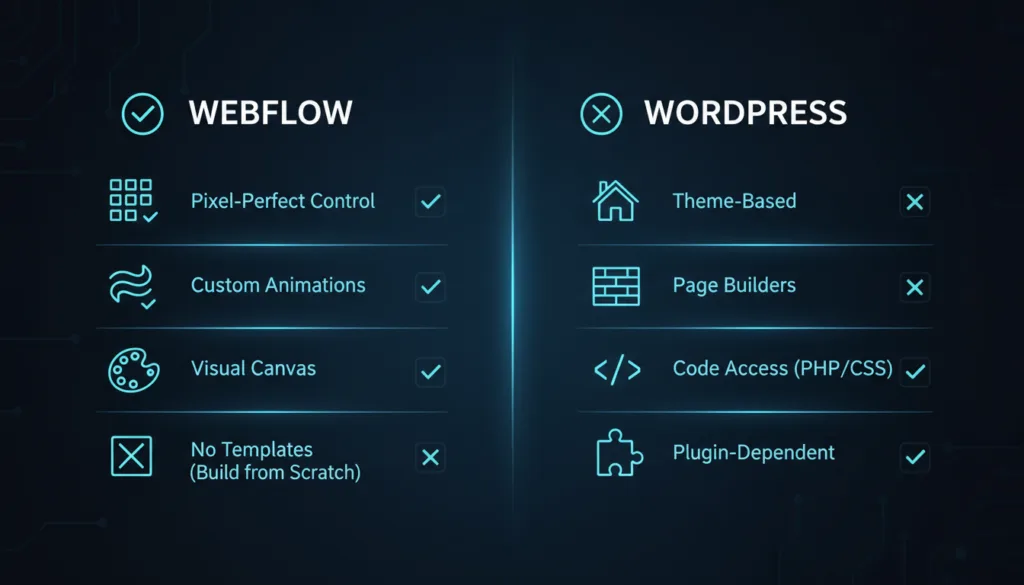
Webflow gives you a visual canvas. You click on any element and change it instantly. Want to move something 10 pixels to the left? Just drag it. Want to change the color? Click on a color picker.
What Makes Webflow Special:
Professional designers love Webflow because it feels like using design software they already know. It’s like drawing directly on your website.
WordPress uses “themes” as starting points. A theme is like a house blueprint. To understand the trade-offs between theme-based and custom approaches, read our comparison of WordPress vs custom website design.
You have three ways to design in WordPress:
The WordPress Challenge:
Many WordPress sites end up looking similar because everyone uses the same popular themes. Making unique designs takes more work. You might need to install several plugins just to get the look you want.
But here’s the good news: With enough time and the right page builder, you can make WordPress look however you want.
| Feature | Webflow | WordPress |
| Visual editing | Built-in, very powerful | Need a page builder plugin |
| Learning curve | Medium (like learning Photoshop) | Easy with themes, hard with code |
| Custom animations | Built-in | Need plugins or code |
| Pixel-perfect design | Yes, always | Yes, but needs the right tools |
| Looks unique | Easy to achieve | Takes more effort |
Winner for Design Freedom: Webflow wins for pure design control. WordPress can match it, but you’ll need to install extra tools and spend more time learning them.
Let’s be honest: Both Webflow and WordPress have learning curves. But they’re different types of learning.
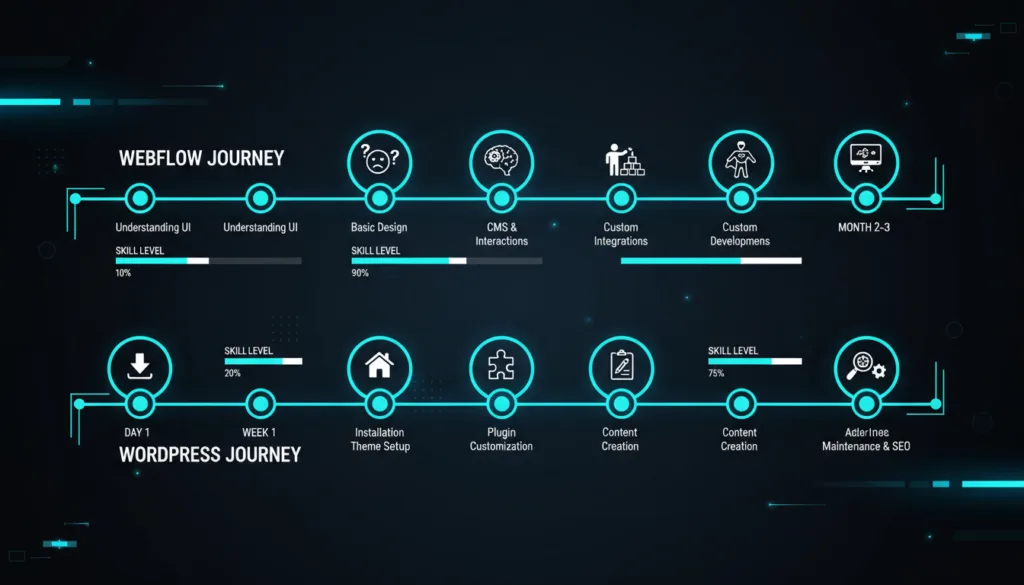
Webflow feels like learning to use Photoshop or Figma. If you’ve used design tools before, you’ll feel at home. If you haven’t, expect to spend a few weeks learning.
Webflow University (their free learning site) has hundreds of video lessons. They’re clear and easy to follow. Most people can build their first site in 2-4 weeks.
The Webflow Learning Path:
Webflow Challenges:
WordPress is easier to start with, especially if you just want a simple blog. You can pick a theme, write posts, and publish in one afternoon.
The WordPress Journey:
WordPress Challenges:
For complete beginners wanting a simple blog, WordPress is easier. Pick a theme, start writing.
For designers wanting creative control: Webflow is clearer. Everything visual works in one place.
For people who want to avoid technical stuff: Both have challenges. Webflow hides the code but requires design thinking. WordPress is simple at first, but gets complex as you grow.
Time is money. So, how long does it take to build a website on each platform?
Webflow typically lets you build websites 50% faster than WordPress once you know how to use it. Why?
Webflow Speed Benefits:
Real Example: A five-page marketing website takes about 2-3 days in Webflow for someone with experience. This includes design, content, and making it work on mobile phones.
WordPress can be quick or slow depending on your approach:
Quick WordPress Setup (1-2 days):
Custom WordPress Site (1-2 weeks):
The Plugin Problem:
Every plugin you add needs setup time. Want a contact form? 20 minutes. Want analytics? Another 20 minutes. Want faster loading? Install a caching plugin and spend an hour learning it.
| Task | Webflow Time | WordPress Time |
| Simple landing page | 3-4 hours | 4-6 hours |
| 5-page business site | 2-3 days | 4-7 days |
| Complex custom design | 1 week | 2-3 weeks |
| E-commerce site | 1-2 weeks | 2-4 weeks |
Winner for Speed: Webflow is generally faster, especially for custom designs. WordPress can be quick for simple sites, but it gets slower as requirements increase.
You’ll spend more time managing content than building your site. So this matters a lot.
Webflow has a modern content editor. Think of it like a clean, simple form. You fill in the blanks, and your content appears exactly where it should.
Webflow CMS Features:
Example: Let’s say you have a team page. In Webflow, you create a “Team Member” collection with fields for name, photo, job title, and bio. Then you just add new team members by filling out the form. Webflow automatically shows them in the right place on your website.
Webflow Content Challenges:
WordPress started as a blogging platform. So content management is its strong point. The editor is familiar and easy to use.
WordPress Content Features:
WordPress Content Strengths:
WordPress is perfect for content-heavy sites. You can have 10,000 blog posts, and it handles them easily. The editing experience feels natural, like writing in Microsoft Word.
You can also add custom fields using plugins like ACF (Advanced Custom Fields). This gives you a Webflow-like structure while keeping WordPress’s power.
| Feature | Webflow | WordPress |
| Ease of editing | Very easy | Very easy |
| Bulk operations | Limited | Excellent |
| Content limits | 2,000 items (basic plan) | Unlimited |
| For large blogs | Not ideal | Perfect |
| For structured content | Excellent | Good (with plugins) |
| Learning curve | Low | Very low |
Winner for Content Management: WordPress wins for large-scale content publishing. Webflow wins for structured, designed content. Pick based on your content volume and type.
Want to sell products? Both platforms can do it, but they’re built for different types of stores. For comprehensive guidance, explore our e-commerce website design guide covering all platform options.
Webflow added e-commerce features in 2018. It’s good for small to medium stores that care a lot about design.
Webflow E-commerce Strengths:
Webflow E-commerce Limits:
Best For: Small stores (under 500 products), digital downloads, fashion brands, design-focused products
WooCommerce is the most popular e-commerce plugin. It powers 11% of all online stores worldwide, including some very large businesses.
WooCommerce Strengths:
WooCommerce Challenges:
Best For: Large stores (500+ products), complex requirements, international selling, subscription products, maximum flexibility
| Feature | Webflow | WordPress + WooCommerce |
| Product limit | 3,000 (Business plan) | Unlimited |
| Design control | Excellent | Good (needs work) |
| Setup time | 2-4 hours | 4-8 hours |
| Monthly cost (100 products) | $42+ | $20-50 (hosting + plugins) |
| Payment options | Good | Excellent |
| Shipping options | Basic | Advanced |
| Subscriptions | Via apps | Native support |
| Digital products | Excellent | Excellent |
E-commerce Winner: WordPress + WooCommerce wins for serious e-commerce. Webflow wins for small, design-focused stores.
Fast websites make visitors happy and rank better on Google. You can test any website’s speed using Google PageSpeed Insights. So which platform is faster?
Webflow includes hosting on Amazon Web Services (AWS). This is the same infrastructure that powers Netflix and many big websites.
Webflow Speed Features:
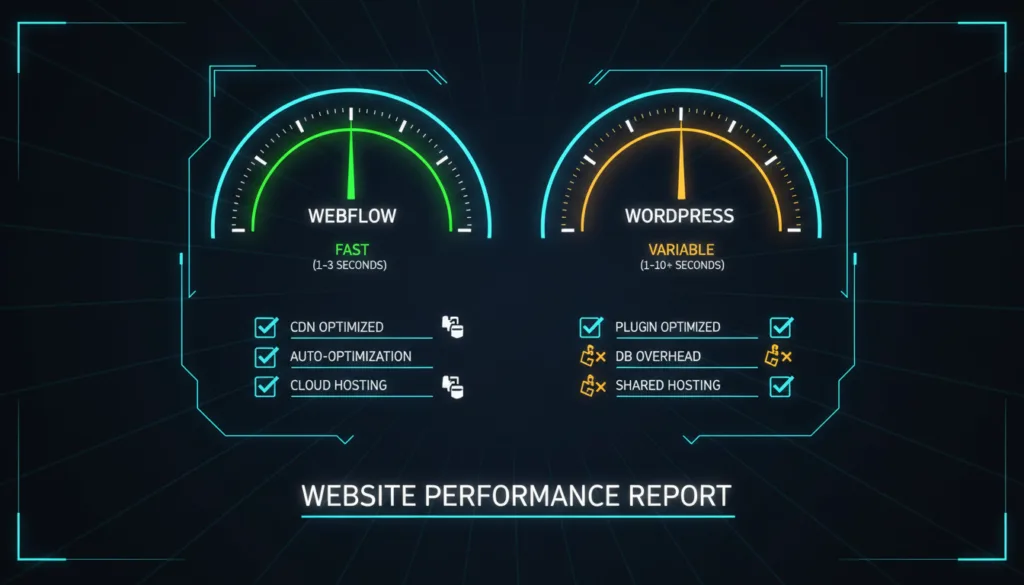
Webflow Performance: Most Webflow sites load in 1-3 seconds. The platform handles all the technical optimization for you. You don’t need to install caching plugins or configure servers.
WordPress speed depends entirely on three things:
WordPress Speed Challenges:
WordPress Speed Solutions:
Good hosting makes a huge difference. Managed WordPress hosts like Kinsta, WP Engine, or Cloudways can get your site loading in under 2 seconds. But they cost more ($25-50+/month).
With optimization, WordPress can be just as fast as Webflow. But it requires more work and knowledge.
| Aspect | Webflow | WordPress |
| Out-of-box speed | Fast (1-3 seconds) | Varies (1-10+ seconds) |
| Optimization needed | Minimal | Moderate to high |
| Hosting included | Yes (AWS) | No (buy separately) |
| CDN included | Yes | Usually extra cost |
| Image optimization | Automatic | Need plugins |
| Caching | Automatic | Need plugins/setup |
| Technical knowledge | None needed | Some needed |
Performance Winner: Webflow wins for ease and consistency. WordPress can match it, but only with good hosting and optimization work.
Both Webflow and WordPress can rank well on Google. But they approach SEO differently. Learn more about creating SEO-optimized web design that ranks regardless of your platform choice.
Webflow includes all basic SEO tools without plugins. Everything you need is built right in.
Webflow SEO Features:
Webflow SEO Process:
For each page, you simply fill in the SEO settings. Add your title, description, and Open Graph image. Webflow handles the technical stuff automatically.
The code Webflow generates is clean and modern. Search engines can easily read and understand your content.
WordPress has been around longer, so the SEO plugin ecosystem is massive. Plugins like Yoast, RankMath, and AIOSEO add powerful features.
WordPress SEO Advantages:
WordPress SEO Process:
Install an SEO plugin (most people use Yoast or RankMath). The plugin analyzes your content and suggests improvements. It checks if you’re using your keyword enough, if your paragraphs are too long, and much more.
| Feature | Webflow | WordPress |
| Basic SEO | Built-in | Need plugin |
| Meta tags | Easy | Easy |
| Clean code | Excellent | Good |
| Speed (SEO factor) | Fast | Varies |
| Advanced features | Limited | Extensive |
| Content analysis | Basic | Advanced |
| Schema markup | Manual | Plugin support |
| Learning curve | Low | Low (with plugins) |
SEO Winner: Tie. Webflow has better technical foundations. WordPress has more advanced tools. Both can rank #1 on Google with good content.
Security and maintenance might sound boring, but they’re important. A hacked website is a nightmare.
Webflow handles all security for you. It’s like living in an apartment where the building takes care of everything.
Webflow Security Benefits:
Webflow Maintenance:
You maintain your content. Webflow maintains everything else. No updates to run. No security patches to install. No technical worries.
Time spent on maintenance: Almost zero
With WordPress, you’re the security guard. It’s like owning a house where you handle the locks and alarms.
WordPress Security Challenges:
WordPress Security Solutions:
Install a security plugin like Wordfence or Sucuri. Enable automatic updates. Use strong passwords. Choose quality plugins from trusted developers. Keep everything updated.
WordPress Maintenance:
You’ll spend 1-2 hours per month on maintenance:
| Aspect | Webflow | WordPress |
| Updates required | None | Weekly/monthly |
| Security vulnerabilities | Very rare | Possible if not maintained |
| Time investment | 0 hours/month | 1-2 hours/month |
| Technical knowledge | None needed | Some needed |
| Automatic backups | Yes | Need plugin/hosting feature |
| SSL included | Yes | Usually yes (hosting) |
| Uptime | 99.99% | Depends on hosting |
Security Winner: Webflow wins. It’s completely hands-off. WordPress requires ongoing attention and knowledge.
How much can you customize? What if you need a special feature?
Webflow gives you amazing design flexibility but less feature flexibility. You can make it look any way you want, but adding complex functionality is harder.
What You Can Do:
What’s Challenging:
Webflow Apps:
Webflow has a growing app marketplace. Popular apps add features like:
But the app ecosystem is smaller than WordPress plugins.
WordPress can do almost anything. There are over 60,000 plugins available. Our WordPress website development services can help you leverage these possibilities for your custom needs. If you can imagine it, there’s probably a plugin for it.
WordPress Possibilities:
WordPress Customization:
If a plugin doesn’t exist, you can hire a developer to build custom functionality. WordPress is open-source, so developers can modify anything.
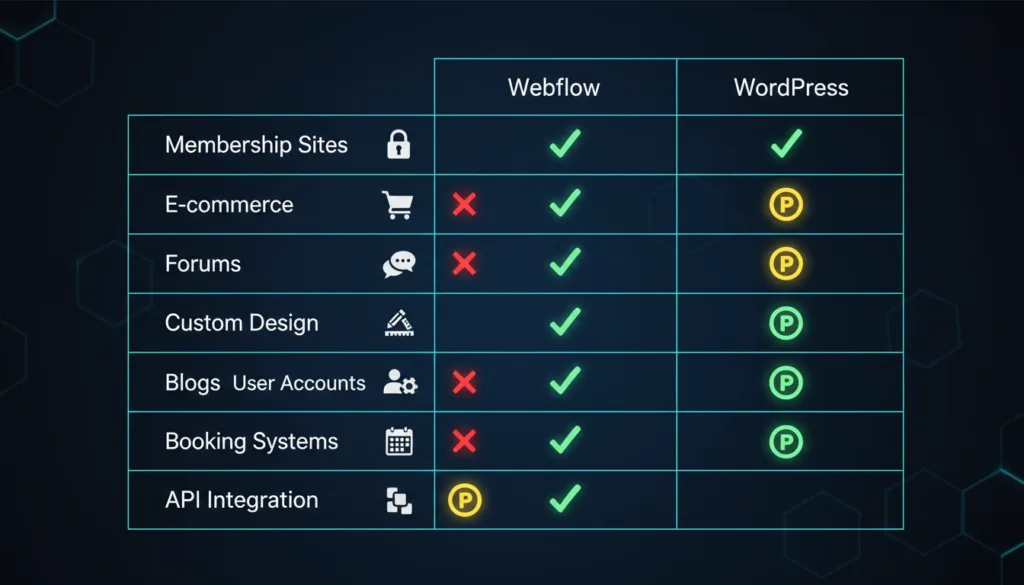
| Need | Webflow | WordPress |
| Custom design | Excellent | Good |
| Membership site | Via apps (limited) | Excellent |
| Online courses | Via apps | Excellent |
| Forums | Not possible | Easy (plugins) |
| Job board | Via apps | Easy (plugins) |
| Booking system | Via apps | Easy (plugins) |
| Custom features | Possible but harder | Easy (developer needed) |
Flexibility Winner: WordPress wins. If you need non-standard features, WordPress probably has a plugin for it.
Let’s break down the real costs. This is where Webflow vs WordPress gets interesting.
Webflow uses all-inclusive pricing. Everything is bundled together.
Webflow Site Plans (for regular websites):
Webflow E-commerce Plans:
What’s Included:
Everything! Hosting, SSL, CDN, backups, maintenance. No surprise costs.
WordPress itself is free. But you need to pay for hosting, a domain, and optional extras.
Basic WordPress Costs:
Real WordPress Pricing Examples:
Budget Setup: $5-10/month
Professional Setup: $30-50/month
Enterprise Setup: $100-500+/month
WooCommerce Costs:
Basic WooCommerce is free. But you’ll want:
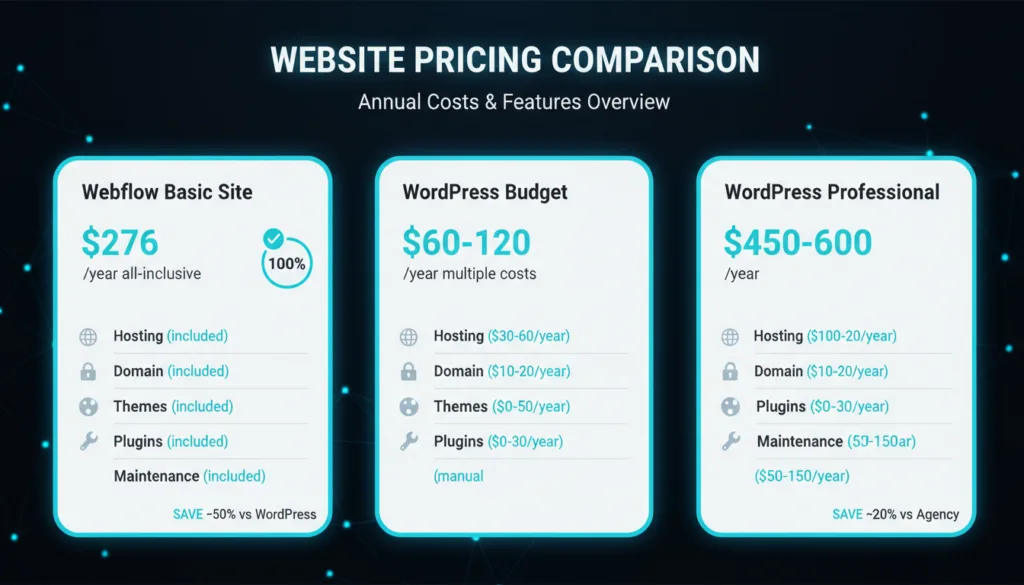
Small Business Website:
| Platform | Year 1 | Year 2 | Year 3 | Total 3 Years |
| Webflow CMS | $276 | $276 | $276 | $828 |
| WordPress (Budget) | $120 | $60 | $60 | $240 |
| WordPress (Professional) | $550 | $450 | $450 | $1,450 |
E-commerce Store:
| Platform | Year 1 | Year 2 | Year 3 | Total 3 Years |
| Webflow Standard | $348 | $348 | $348 | $1,044 |
| WooCommerce (Basic) | $400 | $300 | $300 | $1,000 |
| WooCommerce (Pro) | $1,200 | $800 | $800 | $2,800 |
Hidden Costs to Consider:
For very tight budgets: WordPress wins. You can start for $5/month.
For all-inclusive pricing: Webflow wins. No surprise costs.
For e-commerce: Similar costs for basic stores. WordPress is better for large stores.
For peace of mind: Webflow wins. One predictable bill.
Will your platform grow with you? Or will you hit limits?
Webflow handles growth well for most businesses, but there are limits.
Webflow Capacity:
When Webflow Works:
When You Outgrow Webflow:
Webflow Scaling Benefits:
Hosting is automatic. As your traffic grows, Webflow handles it. No server upgrades needed. No hosting migration stress.
WordPress scales from tiny blogs to massive platforms. Some of the world’s largest sites use WordPress.
WordPress Powers:
WordPress Scaling Path:
Unlimited Potential:
WordPress Scaling Challenges:
| Aspect | Webflow | WordPress |
| Maximum products | 3,000 | Unlimited |
| Maximum posts | 10,000 | Unlimited |
| Traffic handling | Automatic | Depends on hosting |
| Cost scaling | Fixed tiers | Gradual increase |
| Technical complexity | Low | Increases with growth |
Scalability Winner: WordPress wins for unlimited growth. Webflow is great until you hit its limits.
What if you change your mind? Can you move your site?
Webflow gives you export options, but there are limitations.
What You Can Export:
What You Can’t Export:
Migration Reality:
Leaving Webflow usually means rebuilding your site. You can use the design as a reference, but the CMS and dynamic features don’t transfer easily.
This is called “vendor lock-in.” Webflow knows this, which is why they keep improving features. They want you to stay happy.
WordPress gives you complete freedom. You own everything.
What You Can Export:
Migration Options:
WordPress is “open source,” meaning no company controls it. Your data is yours forever.
| Aspect | Webflow | WordPress |
| Data ownership | Limited | Complete |
| Export options | Static HTML only | Everything |
| CMS migration | Very difficult | Easy |
| Switching cost | High (rebuild) | Low to moderate |
| Vendor lock-in | Yes | No |
Migration Winner: WordPress wins. You truly own your site and can move anywhere.
Looking for other platform options? Check out our guide on website design with Wix to compare another popular website builder. Let’s get specific. Here are clear recommendations.
1. You’re building a marketing website
Example: A SaaS company website with 10-20 pages showcasing features, pricing, and a blog
Why: Webflow excels at beautiful, fast marketing sites. Your marketing team can update content safely.
2. You’re a designer or agency
Example: Creating client websites with unique designs
Why: Webflow’s visual tools match your design process. No code needed for pixel-perfect designs.
3. You’re selling a small number of products
Example: A fashion brand with 50-200 products
Why: Beautiful product pages, simple management, all-in-one platform.
4. You want a hands-off technical experience
Example: A small business owner focused on running their business
Why: No updates, no security worries, no technical maintenance.
5. You need fast landing pages
Example: Running ad campaigns with multiple landing page variants
Why: Quick to build, fast loading, easy to duplicate and modify.
1. You’re building a large e-commerce store
Example: An online store with 500+ products, subscriptions, or complex shipping
Why: WooCommerce handles unlimited products and advanced features. Massive plugin ecosystem.
2. You need a content-heavy blog or publication
Example: A news site, magazine, or blog with daily posts
Why: WordPress was built for publishing. It handles thousands of posts easily.
3. You need specific advanced features
Example: Membership site, forum, learning platform, job board
Why: Plugins exist for almost every feature. If not, hire a developer to build it.
4. You have a tight budget
Example: A startup or personal project with limited funds
Why: WordPress can start at $5/month. Free themes and plugins available.
5. You want maximum long-term flexibility
Example: A growing business that might need custom features in the future
Why: No limits. You can customize or add anything as you grow.
6. You need complex user accounts and permissions
Example: A community site where users have profiles, can post content, and interact
Why: WordPress has mature user management. Webflow requires third-party apps with limitations.
SaaS Companies: Webflow (marketing sites) + WordPress (documentation/blog) or just Webflow if blog is small
E-commerce Brands: Webflow for under 500 products, WordPress for more
Agencies: Webflow (faster client delivery, beautiful designs)
Publishers/Bloggers: WordPress (built for content)
Restaurants/Local Business: Either works (pick based on budget and design needs)
Portfolios: Webflow (design control) or WordPress with a good theme
Corporate Websites: Webflow (modern, easy to maintain) or WordPress (if complex needs)
Both platforms are adding AI features. Here’s what’s new.
AI Assistant (2025): Webflow added AI to help with content and design suggestions. You can ask it to write copy, suggest color schemes, or even generate layout ideas.
Next-Gen CMS: Improved content management with better organization and filtering. Makes it easier to manage large amounts of content.
Better Apps: The Webflow app marketplace is growing. More third-party tools are integrating.
Performance Improvements: Faster loading times and better mobile optimization.
Gutenberg Editor Evolution: The block editor keeps improving. Gutenberg 22 added AI writing suggestions and better design controls.
Full Site Editing: New themes support editing everything visually (header, footer, etc.) without code.
AI Plugins: Multiple AI plugins available for:
Performance Features: Better image optimization and faster loading out of the box.
Webflow Future:
WordPress Future:
Both platforms are investing heavily in AI and user experience improvements.
Learn from others’ mistakes.
1. Not planning for mobile design: Always design mobile layouts. Don’t assume a desktop will work everywhere.
2. Overusing animations: Animations are fun, but they can slow down your site. Use them strategically.
3. Ignoring CMS limits: Don’t build a huge blog on Webflow’s basic plan. Check item limits first.
4. Not using classes properly: Learn the class system. It saves time and keeps designs consistent.
5. Forgetting about SEO settings: Fill in meta titles and descriptions for every page.
1. Installing too many plugins: Each plugin adds weight. Only install what you truly need.
2. Using nulled (pirated) themes or plugins: They often contain malware. Always buy from legitimate sources.
3. Ignoring updates: Outdated software is a security risk. Update regularly.
4. Choosing cheap hosting: $3/month hosting will make your site slow. Invest in decent hosting.
5. Not backing up regularly: Sites get hacked or break. Have automatic backups.
6. Using too many page builders: Pick one page builder and stick with it. Multiple builders conflict.
1. Not knowing your goals first: Define what you need before choosing a platform.
2. Copying competitors exactly: Get inspired, but make your site unique.
3. Focusing only on design: Great design matters, but content and performance matter more.
4. Ignoring page speed: Slow sites lose visitors and rank worse on Google.
5. Not testing on real devices: Check your site on actual phones and tablets, not just browser tools.
Want WordPress but like Webflow’s visual editing? It’s possible!
Elementor Pro ($59/year):
Bricks Builder ($149 lifetime):
Oxygen Builder ($129 lifetime):
GeneratePress Premium ($59/year):
Astra Pro ($59/year):
What is Headless? Use WordPress as a content database, but build the front-end in modern tools like Next.js or Gatsby.
Benefits:
Downsides:
If you’re set on WordPress but love Webflow’s approach:
You can get 80% of Webflow’s visual experience in WordPress with the right tools.
No platform has an inherent SEO advantage. Both can rank #1 on Google with good content. Webflow has cleaner code and faster speeds by default. WordPress has more advanced SEO plugins. Content quality matters more than the platform.
Not easily. Content can transfer, but design and functionality need rebuilding. Budget 50-100 hours for a complete migration. Many agencies specialize in this migration.
WordPress can be cheaper if you use free themes and plugins ($60-200/year). But professional WordPress setups often cost more than Webflow ($400-800/year). Factor in your time, Webflow saves hours on maintenance.
Yes and no. Webflow takes longer to learn initially (1-2 months vs. a few days). But once learned, you work faster. WordPress is easier to start, but it can get complex as you add features.
Yes, with the right page builder (Elementor, Bricks, Oxygen). But it takes more time and effort. Webflow’s design tools are more integrated and intuitive out of the box.
For small stores (under 500 products) focused on design: Webflow. For large stores, complex features, or unlimited growth: WordPress with WooCommerce.
No coding required for basic websites on either platform. Webflow needs design thinking. WordPress needs plugin management. Custom features on both platforms benefit from code knowledge.
Webflow: $0 time investment, higher monthly cost. WordPress: 1-2 hours/month maintenance, lower monthly cost, but ongoing attention needed. Your time has value; calculate accordingly.
Webflow. It includes fast hosting, CDN, and optimization automatically. WordPress needs good hosting and configuration to match. But both can achieve fast loading speeds.
Depends on your priorities. If you value time, simplicity, and design control: yes. If you need advanced features or have budget constraints, maybe not. Calculate your total cost, including your time.
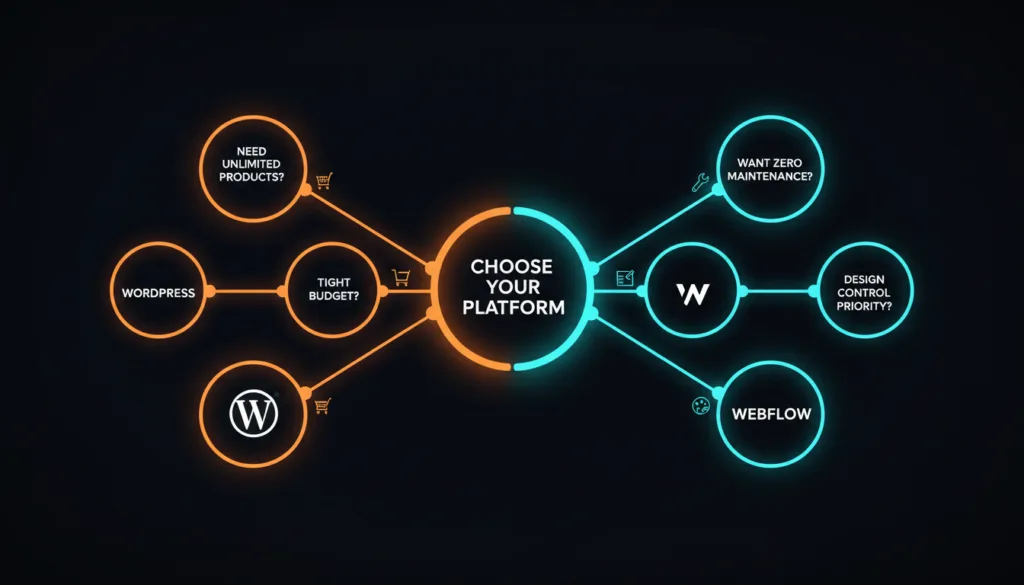
There’s no universal “better” platform in the Webflow vs WordPress debate. Your choice depends on your specific needs.
Choose Webflow if you want:
Choose WordPress if you need: